


Customizing the Appointment Text
The dbicDayView control provides six properties to allow the developer to modify the appearance of the text in an appointment.
By default, the main text in the appointment is determined by the “Text” or “Subject” property of the appointment. (These property names are synonyms for the same item). In addition to the default behavior, the text that appears in an appointment can be made up of text from any one or any combination of the following:
-
Appointment Time: The actual start and end time of the appointment. This text is included when the DisplayTime property is set to a value of True.
-
Location Text: This text appears automatically when any text is present in the “Location” property. This text should not be confused with the text that may appear when the DisplayLocation property is set to true. (See the next option for details).
-
Location Class Text: The text from “Title” property of the LocationItem class as defined by the LocationID property value of the appointment. It is displayed when the DisplayLocation property is set to a value of True. It should be noted that this text is different from the “Location” text of the appointment itself.
-
Contact Class Text: The text from “Title” property of the ContactItem class as defined by the Contact ID property value of the appointment. It is displayed when the DisplayContact property is set to a value of True.
-
Task Class Text: The text from “Subject” property of the TaskItem class as defined by the TaskID property value of the appointment. It is displayed when the DisplayTask property is set to a value of True.
By default, the main text of the appointment and all other text (Time, Location, Contact, Task) are placed on separate lines. The first line consists of the extra info, while all remaining lines consist of the text from the “Text” property. Setting the MergeInfoLine property to a value of True merges all of the text together into one continuous line.
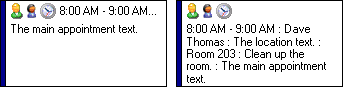
The text in the appointment on the left is not merged. The text in the right appointment is merged.
NOTE: The appointment on the right is displaying text from all available fields.
NOTE: In a single line appointment, the “Text” property of the appointment has priority by default; no other text will be displayed. To override this behavior, set the InfoLinePriority property to a value of True to display the info line (Time, Location, Contact, Task) and not the appointment text.
NOTE: The appointment text displayed when viewing an appointment in the dbicDayView control is not the same as the text presented in edit mode. When the appointment is in edit mode, the only text in the edit box is the value from the appointment's “Text” (or subject) property.
NOTE: An all day or multiple day appointment will only display text from the “text” property regardless of what mode the appointment is in (view or edit).