


Data Binding with dbicDayView
The dbicDayView control encapsulates collections, methods, events, and properties that allow the developer to bind the control to virtually any data source containing collaboration data, i.e. appointments, contacts, locations, and tasks. At its heart, the dbicDayView control presents appointment information and provides a platform for a user to visually interact with that information. The dbicDayView control manages 4 collections internally:
1. Appointments
2. Contacts
3. Locations
4. Tasks
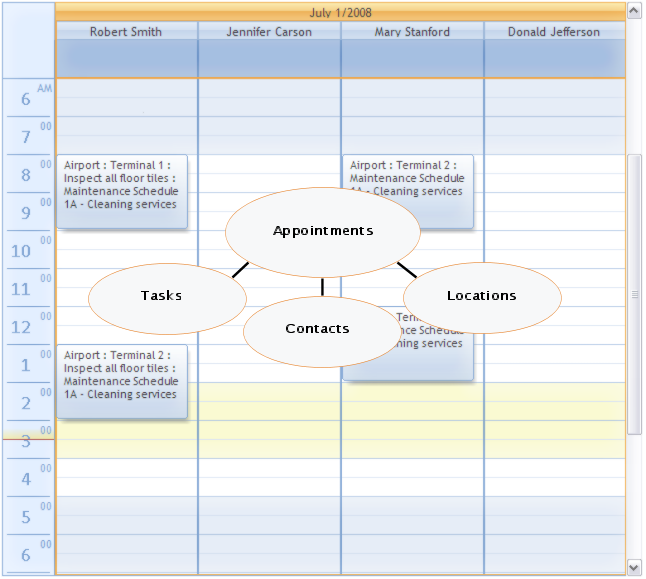
The collections in the dbicDayView control mirror the objects required to build a collaboration database, i.e. a database to store appointment and appointment-related data.
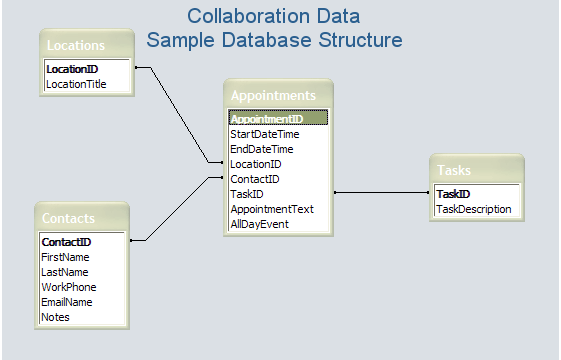
The sample database structure above illustrates the four main objects necessary to describe the data for a collaboration (appointment scheduling) application. It is important to note that each table has an "ID" field to uniquely identify each record in the table. The dbicDayView control collections have a related "EntryID" field in which the appropriate table "ID" value is stored to uniquely identify and relate the objects in the control.
IMPORTANT: The sample database described above is a relatively simple example of a database structure that could be used for a collaboration application. The structure and storage methodologies for each application is different and completely developer dependent.
ADO.NET is set of software components that can be used by programmers to access data and data services. ADO.NET is a part of the base class library that is included with the Microsoft .NET™ Framework. It is commonly used by programmers to access and modify data stored in relational database systems, though it can also be used to access data in non-relational sources. Using the ADO.NET classes, the developer can directly connect and persist the dbicDayView collections with their related database objects.
ADO.NET consists of two primary parts; a Data Provider and a DataSet (DataTables). The Data Provider classes provide access to a data source such as Microsoft SQL Server, an Oracle database, and an OLEDB data provider for connecting to an Access database or other OLEDB compliant data source. The data source includes a set of common utility classes:
· Connection: Provides a connection used to communicate with the data source. Also acts as an abstract factory for command objects.
· Command: Used to perform some action on the data source, such as reading, updating, or deleting relational data.
· Parameter: Describes a single parameter to a command. A common example is a parameter to a stored procedure.
· DataAdapter: A bridge used to transfer data between a data source and a DataSet object (see below).
· DataReader: Used to efficiently process a large list of results one record at a time. It allows records to be accessed in a read-only, forward-only mode, i.e., records have to be accessed in sequential order; they can neither be randomly accessed nor can a record which has been processed previously be accessed again.
DataSet objects are a group of classes describing an in-memory relational database. The DataSet object represents a schema (either an entire database or a subset of one) that contains tables and relationships between those tables. A DataTable object represents a single table in the database. It has a name, rows, and columns.
NOTE: Prior to Visual Studio 2005™ DataTables were only accessible through a DataSet container. In Visual Studio 2005™ the DataTable object was made available for direct connection to a database without the requirement of the higher level abstraction of a DataSet to contain it. For simple databases direct connection through a DataTable object is sufficient.
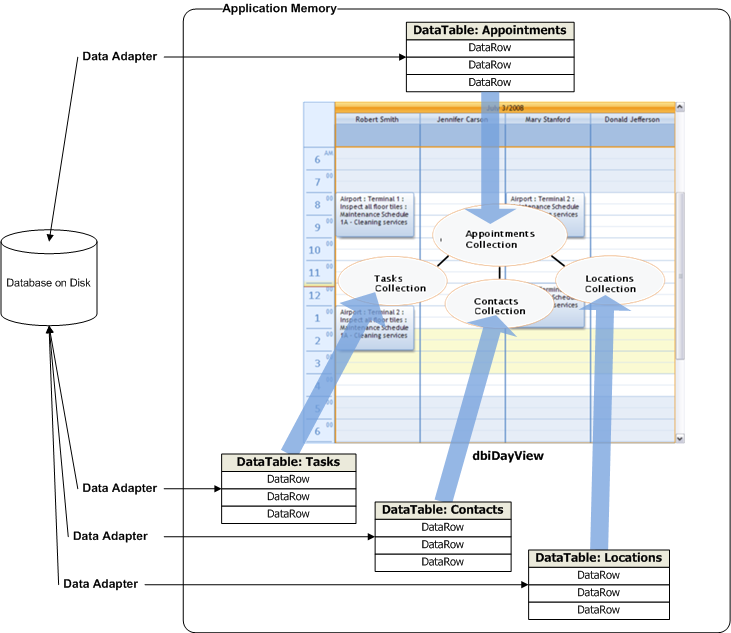
To connect the simple Collaboration Data Structure noted above to the dbicDayView control the following ADO.NET objects are required …
· OLEDB connection object used to communicate with the data source. NOTE: Only one connection is required per data source.
· OleDbDataAdapter objects, one for each DataTable. Persists the data between the DataTable in memory and physical database on disk.
· DataTable objects, one for each physical table in the database. Represents the physical table in memory. NOTE: Each DataTable consists of DataRow objects, each DataRow representing one record in the physical table in the database.
The following diagram illustrates the relationships between the physical database, the ADO.NET objects, and the collections in the control.
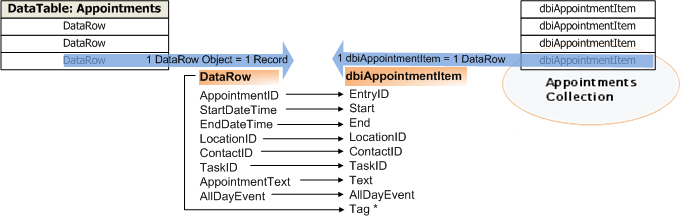
An important advantage of using the ADO.NET architecture is its “object” approach to data management. The following diagram illustrates the detailed relationship between the Appointments DataTable rows (representing the records in the physical database) and the dbicDayView Appointments collection dbiAppointmentItems. The mapping of the columns in the DataRow are one-to-one with the properties of the dbiAppointmentItem objects. NOTE: The Tag property in the dbiAppointmentItem is used to store the DataRow object that the dbiAppointmentItem is representing. This feature is extremely useful for updating the database in response to changes in the data (see below).
The issue of binding the dbicDayView control to a data source requires a basic understanding of the three phases of data binding;
1. Connecting to the data source.
2. Reading the data from the data source.
3. Responding to changes in the data.
SPECIAL NOTE: The dbicDayView control is also capable of loading and saving data in the form of XML files. For more information on using XML and the dbicDayView control please refer to the XML Support section of the help file accompanying the control.
Connecting to the data source
IMPORTANT: The following discussion is only one methodology for connecting a database to the dbicDayView control.PLEASE NOTE: The format and storage architecture for appointment information is completely developer dependent/control independent. There are many database architectures in use today, including SQL Server, Access, ORACLE, dBase, Sybase, Interbase, DB2, Informix, MySQL, and many others. The dbicDayView control is not dependent on any database architecture, but rather the developer's ability to create a connection to the database from which they can read and write data.
The dbicDayView data binding sample application illustrates the use of an ADO.NET connection to an Access 2007 database.
To create the in-memory representation of the database requires the following steps:
1. Create a connection to the database.
2. Create a DataAdapter for each table in the database using the connection and a command to select the appropriate records from the database.
3. Create a DataTable for each table in the database.
4. Fill each DataTable using the appropriate DataAdapter.
5. Create the Insert, Update, and Delete commands for tables requiring those actions.
NOTE: When connecting to the data source it is good practice to create the Update and Delete commands to manage those actions in the database. For simple tables the Data Command Builder (OleDb.OleDbCommandBuilder)can be used. For more complex SELECT statements - or simply where more control over what's going on is required then it is recommended each of the Command properties in the DataAdapter be coded directly.
Once the database has been established in memory the DataRows can be read into the appropriate collections.
Reading the Data from the Data Source
PLEASE NOTE: If your Appointment information does not contain Tasks, Contacts, and/or Locations, loading of those collections is not necessary.Loading the Contacts collection
The following code sample illustrates the population of the dbicDayView control's Contact collection using a DataTable object.NOTE: The Contact Item is inherited from the dbicPIM assembly, its properties are set from the Contact table DataRow (record), and then assigned to the dbicDayView Contacts collection.
NOTE: In the follow code sample the ContactID field in the Contacts table stores the unique value by which each contact is described. This is the relational value in the database used to relate an appointment to a contact. The ContactID from the appointments table is stored in the RecordID (integer value) and EntryID (string value) properties of the Contact collection object. When describing an appointment in the dbicDayView control, the appointment ContactID property describes the appropriate Contact collection object's EntryID. This is how an appointment in the control is related to a contact in the contacts collection. This allows for the quick retrieval of the contact information when inspecting an appointment.
<VB.NET Sample>
'Loads the contacts from the database into the contacts collection of the dbicDayView control
'Clear the Contacts collection in the dbicDayView control
Me.dbicDayView1.Contacts.Clear()
'Iterate through the rows in the Contacts Data Table
Dim currentRow As DataRow
For Each currentRow In dtContacts.Rows
'Create a new Contacts collection object
Dim dvContact As New Dbi.PIM.dbiContactItem
'Set the properties of the Contacts collection object
dvContact.LastName = currentRow("LastName")
dvContact.FirstName = currentRow("FirstName")
dvContact.RecordID = currentRow("ContactID")
dvContact.EntryID = currentRow("ContactID")
'Set the Title to the LastName, FirstName (used when grouping and filtering)
dvContact.Title = currentRow("LastName") & ", " & currentRow("FirstName")
'Add the contact to the dbicDayView control's Contacts Collection
Me.dbicDayView1.Contacts.Add(dvContact)
Next
<C# Sample>
//Loads the contacts from the database into the contacts collection of the dbicDayView control
//Clear the Contacts collection in the dbicDayView control
this.dbicDayView1.Contacts.Clear();
//Iterate through the rows in the Contacts Data Table
foreach (DataRow currentRow in DataBinding.dtContacts.Rows)
{
//Create a new Contacts collection object
Dbi.PIM.dbiContactItem dvContact = new Dbi.PIM.dbiContactItem();
//Set the properties of the Contacts collection object
dvContact.LastName = (string)currentRow["LastName"];
dvContact.FirstName = (string)currentRow["FirstName"];
//Concatenate the Last Name and First Name in the Title for use in the Contacts Combo Box in the Appointment Dialog.
dvContact.Title = currentRow["LastName"] + ", " + currentRow["FirstName"];
dvContact.RecordID = (int)currentRow["ContactID"];
dvContact.EntryID = currentRow["ContactID"].ToString();
//NOTE: The ContactID field in the Contacts table stores the unique value by which each contact is described.
// This is the relational value in the database used to relate an appointment to a contact.
// The ContactID from the appointments table is stored in the RecordID (integer value) and EntryID (string value) properties of the Contact collection object.
// When describing an appointment in the dbicDayView control, the appointment.ContactID property describes the appropriate
// Contact collection object's EntryID. This is how an appointment in the control is related to a contact in the contacts collection.
// This allows for the quick retrieval of the contact information when inspecting an appointment.
// NOTE: The dbicDayView control will display the name of the contact in an appointment by looking up
// the appropriate contact in the dbicDayView's Contacts collection using the appointment's ContactID
// value and comparing it to the EntryID values in the Contacts collection.
this.dbicDayView1.Contacts.Add(dvContact); //Add the contact to the dbicDayView control's Contacts Collection
}
It is important to note that the Contact Collection Item (dvContact above) EntryID property is set to the ContactID field value in the Contacts table record. As with a database, the Contacts collection in the control requires the developer to uniquely identify each contact with an ID value. This value is used to connect a Contact to one or many Appointments in the control. Similarly, the Locations and Tasks collections have EntryID properties for each item. These EntryID values are used to connect Locations and Tasks to Appointments using an Appointment's LocationID and TaskID properties.
The above procedure can be repeated for Locations and Tasks.
Loading the Appointments collection
The following code sample illustrates the population of the dbicDayView control's Appointments collection using a DataTable object .NOTE: The Appointment Item is inherited from the dbicPIM assembly, its properties are set from the Appointments table DataRow (record), and then the dbiAppointmentItem is added to the dbicDayView Appointments collection.
<VB.NET Sample>
Private Sub LoadAppointments(ByVal dtDate2LoadStart As DateTime, ByVal dtDate2LoadEnd As DateTime)
'Reads the appointments from the appointments table in the database into the dbicDayView control
Try
'Create a filter on the data table to show only those appointments between the start
'and end dates passed in as parameters in the call to LoadAppointments.
Dim filterAppointments() As DataRow
Dim stringFilter As String
stringFilter = "StartDateTime >= '" & dtDate2LoadStart.ToString("MM.dd.yyyy") & "' "
stringFilter = stringFilter & "AND StartDateTime <= '" & _
dtDate2LoadEnd.Date.ToString("MM.dd.yyyy") & "'"
'Sets the filter on the data table.
'NOTE: The Select method on the table returns only those rows that match the filter criteria.
'The rows are stored in a strongly typed array of rows called filterAppointments.
filterAppointments = dtAppointments.Select(stringFilter)
'Iterate through the strongly typed array of rows to create the appointments in the dbicDayView control
Dim currRow As DataRow
For Each currRow In filterAppointments
'create a new appointments collection appointment object
Dim dvAppointment As New Dbi.PIM.dbiAppointmentItem
'Set the properties of the appointment item object
dvAppointment.Start = currRow("StartDateTime")
dvAppointment.End = currRow("EndDateTime")
dvAppointment.AllDayEvent = currRow("AllDayEvent")
dvAppointment.Text = IIf(IsDBNull(currRow("AppointmentText")), "", currRow("AppointmentText"))
dvAppointment.ContactID = currRow("ContactID").ToString
'NOTE: The appointment record in the database is related to a contact in the database by the ContactID value in the appointment's ContactID field. Similarly, the appointment item object in the dbicDayView control is related to a Contact in the Contacts collection by setting the appointment object's ContactID value to the contact object's entryID value.
dvAppointment.LocationID = currRow("LocationID").ToString
'NOTE: The appointment record in the database is related to a location in the database by the LocationID value in the appointment's LocationID field. Similarly, the appointment item object in the dbicDayView control is related to a Location in the Locations collection by setting the appointment object's LocationID value to the location object's entryID value.
dvAppointment.EntryID = currRow("AppointmentID")
'* * * * * NOTE: VERY IMPORTANT! * * * * *
'Set the appointment object's tag to store a pointer to the record in the table it represents.
'This allows the developer to reflect any changes or deletes to the appointment back to the table through the record stored in its tag property.
dvAppointment.Tag = currRow
'Add the appointment item object to the dbicDayView's appointments collection.
Me.dbicDayView1.Appointments.Add(dvAppointment)
Next
Catch ex As Exception
MessageBox.Show("Error: " + ex.ToString, "Error")
End Try
End Sub
<C# Sample>
private void LoadAppointments(DateTime dtDate2LoadStart , DateTime dtDate2LoadEnd)
{
//Reads the appointments from the appointments table in the database into the dbicDayView control
try
{
//Create a filter on the data table to show only those appointments between the start
//and end dates passed in as parameters in the call to LoadAppointments.
DataRow[] filterAppointments;
string stringFilter;
stringFilter = @"StartDateTime >= '" + dtDate2LoadStart.ToString("MM.dd.yyyy") + "' ";
stringFilter = stringFilter + @"AND StartDateTime <= '" + dtDate2LoadEnd.Date.ToString("MM.dd.yyyy") + "'";
//Sets the filter on the data table.
//NOTE: The Select method on the table returns only those rows that match the filter criteria.
//The rows are stored in a strongly typed array of rows called filterAppointments.
filterAppointments = DataBinding.dtAppointments.Select(stringFilter);
//Iterate through the strongly typed array of rows to create the appointments in the dbicDayView control
foreach(DataRow currRow in filterAppointments)
{
//create a new appointments collection appointment object
Dbi.PIM.dbiAppointmentItem dvAppointment = new Dbi.PIM.dbiAppointmentItem();
//Set the properties of the appointment item object
dvAppointment.Start = (DateTime)currRow["StartDateTime"];
dvAppointment.End = (DateTime)currRow["EndDateTime"];
dvAppointment.AllDayEvent = (bool)currRow["AllDayEvent"];
if(currRow.IsNull("AppointmentText"))
{
dvAppointment.Text = "";
}
else
{
dvAppointment.Text = (string)currRow["AppointmentText"];
}
dvAppointment.ContactID = currRow["ContactID"].ToString();
//NOTE: The appointment record in the database is related to a contact in the database by the ContactID value
//in the appointment's ContactID field. Similarly, the appointment item object in the dbicDayView control is
//related to a Contact in the Contacts collection by setting the appointment object's ContactID value to the
//contact object's entryID value.
dvAppointment.LocationID = currRow["LocationID"].ToString();
//NOTE: The appointment record in the database is related to a location in the database by the LocationID value
//in the appointment's LocationID field. Similarly, the appointment item object in the dbicDayView control is
//related to a Location in the Locations collection by setting the appointment object's LocationID value to the
//location object's entryID value.
dvAppointment.EntryID = (string)currRow["AppointmentID"];
//* * * * * NOTE: VERY IMPORTANT! * * * * *
//Set the appointment object's tag to store a pointer to the record in the table it represents. This allows
//the developer to reflect any changes or deletes to the appointment back to the table through the record
//stored in its tag property.
dvAppointment.Tag = currRow;
//Add the appointment item object to the dbicDayView's appointments collection.
this.dbicDayView1.Appointments.Add(dvAppointment);
}
}
catch(Exception ex)
{
System.Windows.Forms.MessageBox.Show("Error: " + ex.ToString(), "Error");
}
}
Responding to changes in the data
The dbicDayView control provides appointment level events and control/collection level methods that allows the developer to identify and respond to changes in the appointment data within the control..dbicDayView Events
The following dbicDayView events provide the surface through which the developer can track and respond to changes in a selected appointment. The Appointment level events provide the developer with a set of arguments that provide access to the appointment being moved/edited and all of its properties (start date/time, end date/time, AppointmentID, etc.)
AfterAppointmentChange - This event fires after an appointment has been moved or resized through direct user input of dragging the top (start time), bottom (end time), or entire appointment to a new location in the control (column, start time, and/or end time). Ideal for the coding of the saving of appointment changes to the database (please see Writing Changes to the database below).
AfterAppointmentSelect - Fires after an appointment has been selected. Provides an excellent area to code the tracking of the selected appointment.
AppointmentDoubleClick - Fires after an appointment has been double-clicked on. Ideal for coding the presentation of an edit detail form.
AppointmentRightClick - Fires after an appointment has been right-mouse clicked on. Ideal for coding the presentation of an Edit/Delete context menu.
AppointmentTextChange - Fires after an appointment's text has been changed by the user typing in the edit window directly in the control when the appointment is in edit mode. Ideal for coding the save of appointment text changes to the database.
BeforeAppointmentAdd - Fires before an appointment is added to the control. This event only fires when an appointment has been added by user interaction with the dbicDayView control (i.e. the user highlights a period of time in the dbicDayView control and begins typing in the appointment text). NOTE: 'This event will not fire when appointments are added programmatically to the dbicDayView appointments collection. Ideal for the coding of the saving of new appointments to the database.
MouseDown - Fires when a mouse button is pressed on the control. This event allows the developer to determine which mouse button has been pressed and if the mouse is being pressed on an appointment or on a blank area in the control. Ideal for coding the presentation of an Edit/Delete context menu (if an appointment is under the mouse) or the presentation of an Add context menu if there is no appointment under the mouse.
NOTE: The determination of the existence of an appointment under the mouse can be achieved by using the AppointmentAt method described below.
dbicDayView Methods
The following dbicDayView methods provide a programmatic interface through which the developer can interact with the collections in the control in response to user requests.
Appointments.Add(dbi.PIM.AppointmentItem) - Adds an appointment to the dbicDayView appointment collection.
Appointments.RemoveAt(AppointmentID) - Removes a selected appointment (as described by the AppointmentID parameter) from the appointments collection.
AppointmentAt(x,y) - Returns the index value of the appointment under the mouse at a given set of x and y coordinates. Used in conjunction with the MouseDown event described above, the AppointmentAt method is ideal for determining if the user has clicked on an appointment or on an empty space within the dbicDayView control when choosing a context menu to display.
Writing Changes to the database
As described above, the dbicDayView control fires events in response to user input, i.e. add/edit(change)/delete requests. Using the events, the developer can code the updates to the database. It is important to note that the dbicDayView events pass an “e” argument that includes the appointment (dbiAppointmentItem) being affected. This allows the developer direct access to the DataRow being affected which is stored in the “Tag” property of the dbiAppointmentItem object (See Loading the Appointments Collection above). Changes to the appointment are reflected in the DataRow and then the DataAdapter that persists the table in memory to the physical database is updated.
The following code illustrates the updating of an appointment record in the Appointments table in the database (described above). The code is executed after the user has edited the text in an appointment causing the AppointmentTextChange Event to fire. As noted above, the event passes the dbiAppointmentItem being changed in its “e” event arguments. This allows the developer to get a direct handle to the DataRow from the Appointment’s Tag property. In the code below the DataRow’s AppointmentText field is set to the new value of the appointment text and then the daAppointments data adapter is used to write the change back to the physical database.
<VB.NET Sample>
Private Sub dbicDayView1_AppointmentTextChange(ByVal sender As Object, ByVal e As Dbi.WinControl.DayView.AppointmentTextChangeEventArgs) Handles dbicDayView1.AppointmentTextChange
'This event fires when an appointment's text is changed.
'Cast the DataRow in the tag of the appointment back into a DataRow
'NOTE: The DataRow is used to persist the changes to the appointment back
'to the table in the database describing the appointment objects.
Dim recordRow As DataRow
If e.Appointment.Tag Is Nothing Then
'No record was created for the appointment
MsgBox("No record exists in the tag of the appointment!", MsgBoxStyle.OkOnly)
Else
recordRow = e.Appointment.Tag
'Set the AppointmentText field in the record to the new value of the appointment text.
recordRow.Item("AppointmentText") = e.Appointment.Text
Try
'Update the dtAppointments table through the daAppointments data adapter.
daAppointments.Update(dtAppointments)
Catch ex As Exception
'Catches intermittent phantom concurrency errors encountered when using ADO.NET with mdb files.
MsgBox(ex.Message, MsgBoxStyle.OkOnly)
End Try
End If
End Sub
<C# Sample>
private void dbicDayView1_AppointmentTextChange(object sender, Dbi.WinControl.DayView.AppointmentTextChangeEventArgs e)
{
//This event fires when an appointment's text is changed by putting the appointment in edit mode
//(left click on an appointment) changing the text, and clicking off of the appointment.
//Cast the DataRow in the tag of the appointment back into a DataRow
//NOTE: The DataRow is used to persist the changes to the appointment back
//to the table in the database describing the appointment objects.
DataRow recordRow;
if (e.Appointment.Tag == null)
{
//No record was created for the appointment
System.Windows.Forms.MessageBox.Show("No record exists in the tag of the appointment!");
}
else
{
recordRow = (DataRow)e.Appointment.Tag;
//Set the AppointmentText field in the record to the new value of the appointment text.
recordRow["AppointmentText"] = e.Appointment.Text;
try
{
//Update the dtAppointments table through the daAppointments data adapter.
DataBinding.daAppointments.Update(DataBinding.dtAppointments);
}
catch (Exception ex)
{
//Catches intermittent phantom concurrency errors encountered when using ADO.NET with mdb files.
System.Windows.Forms.MessageBox.Show(ex.Message);
}
}
}