


Grouping and Columns in dbicDayView
By default, the dbicDayView control is designed to handle multiple columns per day, and multiple days per calendar. The number of visible columns in the control is determined by the DisplayColumns property. The total number of columns in the control (visible and virtual) is determined by the number of days between the Date and DateEnd properties, and/or by the number of entries into the Contacts, Locations, or Tasks collections (when using an AppointmentType other than Date or using a GroupType within the AppointmentType).
NOTE: To display a range of dates, set the Date and DateEnd properties. Alternatively the developer may set the Date property and use the Days property to specify the number of days to display in the control.
dbicDayView.Days = 7 'Sets the control to display 7 days starting with the day defined by the DateStart property value.
Defining the Columns and Sub-Columns
The main heading for columns within the control is determined by the AppointmentType property. If this property is set to Date, the number of columns is set to the Days value or number of days between and including the start and end dates of the control.

AppointmentType set to Date
If the AppointmentType property is set to either Contacts, Locations, or Tasks, the number of total columns is determined by the number of items within the Contacts, Locations, or Tasks collections respectively.

AppointmentType set to Contact
NOTE : The number of visible columns is determined by the DisplayColumns property. If more columns exist than are visible, a horizontal scroll bar is drawn at the bottom of the control to allow the user to navigate to the non-visible columns.
Sub-Grouping
Further to the AppointmentType property, the developer can define a value for the GroupType property, to set up sub-columns within the AppointmentType value. If the GroupType property is set to a value other than None (i.e. Date, Contact, Location, or Task), and the GroupType property is not the same as the AppointmentType property, the columns will be set up with sub-groups. The layout of the columns is represented by a split header.
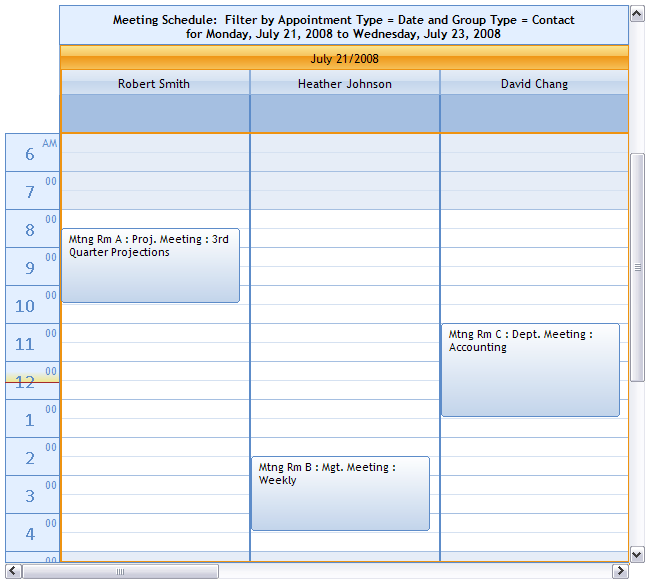
AppointmentType set to Date and GroupType set to Contact
When sub-grouping is used to display appointments, the number of columns is determined by the number of items in the appointment type multiplied by the number items in the group type. For instance, setting AppointmentType to Location (that contains three locations) and setting GroupType to Tasks (that contains two task types) would require 3 * 2 or six column definitions for the control.
SPECIAL NOTE: When the AppointmentType and GroupType are not set to Date, it is possible to get three levels of grouping, by showing all appointments of AppointmentType and GroupType for a specific date. To get a Date title in the split header, set the GroupWithDate property to true. All appointments that appear in the control must have a starting date that matches the Date property. If it is set to false, the starting date of all appointments will be ignored and all appointments regardless of starting date will be displayed.
Using Entry ID’s
When a new item is created in the Contacts, Locations, and Tasks collection, an Entry ID is assigned (created) by the dbicDayView control, or may optionally be set by the developer. Entry ID's assigned by the control are values which are a random collection of characters and numbers designed to give that item a unique identifier. The developer could also assign a record ID or GUID value from the record in the table describing the Contacts, Locations, or Tasks. Grouping requires the control set up columns based on Entry ID values. For example if there are three contacts in the Contacts collection, and GroupType is set to Contacts, then each column is represented internally in the control by the ContactID of each of the contacts and labeled in the column representing the contact with the contact's name. Only those appointments whose ContactID property value matches that of the ContactID value of the column are displayed in that column.
Custom Columns (ColumnTypes)
In addition to the default grouping and sub-grouping capabilities of the dbicDayView control there is also support for the definition of custom column types. This feature is especially useful when creating calendars with non-consecutive dates (such as business weeks in a month) or partially filtered groupings within the collections, such as contacts. Custom columns are set up as ColumnType objects that are stored in the dbicDayView ColumnType collection. These column type objects supercede any grouping and/sub-grouping that has been set up in the control. The image below represents a calendar set up with three ColumnType objects in the ColumnTypes collection and the DisplayColumns set to three.

Three ColumnTypes defined for three non-consecutive days with first two columns having a ContactID definition (NOTE: Third column has no Contact Name).
ColumnType objects can be defined using a Date and/or a ContactID and/or a LocationID and/or a TaskID.
NOTE: When using ColumnType objects to define the columns in the Calendar, new appointments created by interacting with a column inherit that column’s ColumnType definition. For example if a Column were defined using a Date and a ContactID any appointment created in that column would automatically be assigned that Date and ContactID.
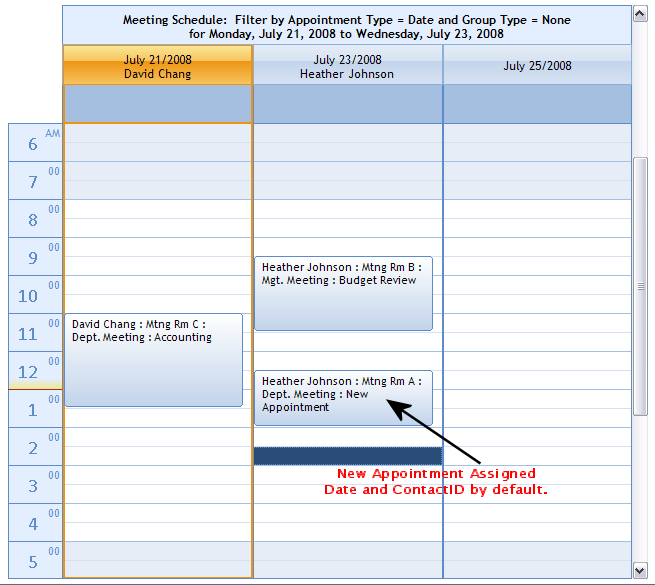
New Appointment automatically assigned ColumnType Date and ContactID.