


Customizing Appointments
Images and Image Orientation
An appointment can display up to three custom images and one defined image (for the reminder). These images can be from an external image list attached to the control or from a group of stock images supplied in the dbicPim.dll assembly.
An image will be displayed in the appointment when an index value other than -1 is set in the Image1, Image2, or Image3 properties of the appointment. If we are using an external image list, the developer must first attach the image list to the control with the ImageList property of the control. The developer must then supply a valid index value from the image list. (0 to [number of images – 1] ... image list index values are 0 based). To use a stock image, the developer must supply a value of –2 or less (See the dbicPim documentation for further details).
The ImageOrientation property determines how the images will be displayed. If the property is set to “horizontal”, all images will be drawn along the top line of the appointment. Any text will be drawn after the images. If the property is set to “vertical”, the images will be drawn down the left margin of the appointment. Any text in the appointment will be drawn to the right of this margin.
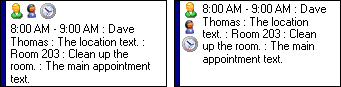
The appointment on the left is using a horizontal orientation for the images. The appointment on the right is using a vertical orientation.
Fonts
The default font for the text in the appointment is determined by the Font property of the control. However, the AppointmentItem class allows the developer to store two additional fonts. The main text in the appointment can be set with the “Font” property of the AppointmentItem class, and the info line text in the appointment can be set with the “InfoFont” or “Font2” property of the AppointmentItem class.
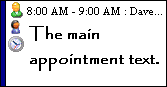
An appointment with custom fonts for both the info line and main text.
Colors and Appearance
Like the fonts, the background, text, and task bar colors for the appointments all have a default property. However each appointment can be custom colored using the BackColor, BackColorTo, ForeColor, FillType, and TaskBarColor properties from the AppointmentItem class.
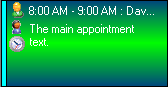
The appointment above is set with a custom background colors, text color and a new task bar color.
When an appointment is selected, a bar will be drawn along the top and bottom of the appointment. The color of these bars is determined by the BarTopColor and BarBottomColor properties respectively.
Restrictions
An appointment can have restrictions placed on it through the AppointmentItem class. These include…
-
Read Only : The appointment cannot be edited within the control. This is controlled though the “ReadOnly” property in the AppointmentItem class.
-
Locked : The appointment can be edited, but it cannot be moved (within the control). This is controlled though the “Locked” property in the AppointmentItem class.
NOTE: Minimum and Maximum Time - These properties are used so that an appointment must conform to a certain period of time. If the user attempts to size the appointment outside of these boundaries, the appointment will adjust its time to fit this restriction. The “MinTime” and “MaxTime” properties of the AppointmentItem class determine these boundaries