


Conflict Checking
The dbicDayView control contains conflict checking methods to allow the developer to test for potential conflicts (overlapping of times within a schedule) between appointments.
There are two conflict checking methods to test for conflicts as the result of a move within the dbicDayView Appointments collection; FindFirstConflict and FindNextConflict, and one method to test for potential conflicts before an appointment is added to the Appointments collection; AppointmentConflict.
The FindFirstConflict and FindNextConflict methods work only on appointments that exist within the control’s Appointments collection. Therefore, the appointment provided as an input parameter must exist within the dbicDayView’s Appointments collection. The overlap time(the time common to the input parameter appointment and the appointment returned from the method) can also be altered with the ConflictOffset property. For example if it is allowable for appointments to overlap by five minutes the ConflictOffset property would be set to 5 meaning that appointment times in conflict five minutes or less would not be reported as conflicts.
The AppointmentConflict method will work with any dbi.PIM.dbiAppointmentItem object regardless of whether it exists in the dbicDayView Appointments collection or not making it ideal for testing the addition of new appointments.
IMPORTANT NOTE: The dbicDayView conflict checking methods work on the Appointments collection of the dbicDayView instance specific to the machine on which the application is running. In multi-user applications that use a centralized or common database it is advisable to implement database level conflict checking where applicable.
Looking for Non-Visible Appointments
There may be instances where an appointment exists outside the current time area being displayed (either above, or below). If the ArrowIndicators property is set to true, an arrow will be drawn in the time area when an appointment is present, but not in the visible area. To determine what the index for the appointment is use the FindPrevAppointment and FindNextAppointment methods. If the return value from the method is greater than –1, the developer can use the MakeAppointmentVisible method to force the control to show the appointment. This works well in the ArrowIndicatorClick event.
<VB.NET>
Private Sub dbicDayView1_ArrowIndicatorClick(ByVal sender As Object, ByVal e As Dbi.WinControl.DayView.ArrowIndicatorClickEventArgs) Handles dbicDayView1.ArrowIndicatorClick
Dim nIndex As Integer
If (e.Arrow = 0) Then 'Up Arrow Clicked
nIndex = dbicDayView1.FindPrevAppointment()
Else 'Down Arrow Clicked
nIndex = dbicDayView1.FindNextAppointment()
End If
If (nIndex >= 0) Then 'Scroll to the next or previous appointment
dbicDayView1.MakeAppointmentVisible(nIndex)
End If
End Sub
<C#>
private void dbicDayView1_ArrowIndicatorClick(object sender, Dbi.WinControl.DayView.ArrowIndicatorClickEventArgs e)
{
int nIndex;
if (e.Arrow == 0)
//Up Arrow clicked
nIndex = this.dbicDayView1.FindPrevAppointment();
else
//Down Arrow clicked
nIndex = this.dbicDayView1.FindNextAppointment();
if (nIndex >= 0)
//Scroll the control to the previous or next appointment
this.dbicDayView1.MakeAppointmentVisible(nIndex);
}
Finding An Appointment
The developer can check for the existence of an appointment in the control through the AppointmentAt method. This method accepts an X and Y coordinate, and then checks for any appointments at that location.
Determining if an Appointment Drop is Valid
When the developer creates custom areas in a control, they can be declared as dead zones. A dead zone prevents the creation or moving of an appointment into this area.
NOTE: A dead zone does not prevent the creation or moving of an appointment into this zone through code. The InDeadZone method makes it easy for the programmer to check for the existence of a dead zone when creating or moving appointments through code.
Displaying a Certain Time
The ShowTime and ShowCurrentTime methods can be used to force the control to make a given time visible in its time line. The ShowCurrentTime method does not accept any parameters. It reads the current system time and adjusts the control to make that time visible. In both cases, if the time is already visible, the control will not be adjusted. If the control is not able to move to the given time, the methods will return a value of False.
Font Size “Out Of Bounds”
The edit window for direct editing of text in the dbicDayView control may require setting the HeightOffset property to capture text input correctly. If the Edit window closes after the first character is entered place test code in the ControlError event to check the message generated at the point the text is entered into the control.
<VB.NET>
MsgBox("Control Error: " & e.Message)
<C#>
MessageBox.Show("Control Error: " + e.Message);
If the font is too large for the edit window the control reports the following error …
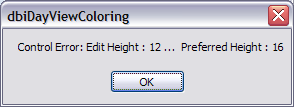
Set the HeightOffset value of the dbicDayView control to adjust the EditHeight to the preferred height to allow the entry of text into the appointment.