


Setting Alarms
The dbicPim assembly contains an alarm component. As such, the dbicPIM assembly can be loaded into the toolbox like other visual components. To implement alarms, create an instance of the dbicPIM dll in the form (drag from the toolbox on to the form). To create an alarm, add the appointment to which the alarm is targeted to the dbicPIM component's Alarms collection.
<VB.NET>
Dim dtStart As DateTime = Now.AddHours(Now.Hour)
Dim dtEnd As DateTime = dtStart.AddHours(1)
Dim objAlarm As New Dbi.PIM.dbiAppointmentItem(dtStart, dtEnd)
objAlarm.Text = "General Meeting"
objAlarm.ReminderPlaySound = True
objAlarm.ReminderSoundFile = "Chimes.wav"
DbicPim1.Alarms.Add(objAlarm)
<C#>
DateTime dtStart = DateTime.Now.AddHours(1);
DateTime dtEnd = dtStart.AddHours(1);
Dbi.PIM.dbiAppointmentItem objAlarm = new Dbi.PIM.dbiAppointmentItem(dtStart, dtEnd);
objAlarm.Text = "General Meeting";
objAlarm.ReminderPlaySound = true;
objAlarm.ReminderSoundFile = "Chimes.wav";
DbicPim1.Alarms.Add(objAlarm);
When an alarm is triggered, the Alarm event of the control will be fired and the appointment will then be removed from the dbicPIM dll's Alarms collection.
Display the Reminder Dialog
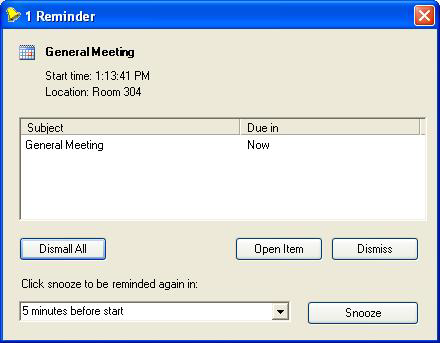
If the ReminderDialog property of the dbicPIM control is set to True, a reminder dialog will also appear when the alarm is triggered. The user will be able to view additional details of the appointment and interact with the appointment through this dialog.
Playing A Sound
The developer also has the option to play a sound when the alarm is triggered. To play a sound when the alarm is triggered, set the ReminderPlaySound property to true and the ReminderSoundFile property to a valid wave file location path.
<VB.NET>
objAlarm.ReminderPlaySound = True
objAlarm.ReminderSoundFile = "Chimes.wav"
<C#>
objAlarm.ReminderPlaySound = true;
objAlarm.ReminderSoundFile = "Chimes.wav";
If the ReminderSoundFile property points to a valid wave file, the file will be played when the alarm is triggered.