


Titles and Headers
The appearance for both the title and headers in the dbicDayView control are determined by the appropriate title and header properties. The title appearance is determined by the following properties:
| TitleAlign | TitleBackColor | TitleBackColorTo |
| TitleBorder | TitleDate | TitleFillType |
| TitleFont | TitleForeColor | TitleHeight |
| TitleOffset | TitlePosition | TitleText |
| TitleWordWrap |
The header appearance is determined by the following properties.
| DateFormat | HeaderAlign | HeaderBackColor |
| HeaderBackColorTo | HeaderBorderColor | HeaderBorderType |
| HeaderFillType | HeaderFont | HeaderForeColor |
| HeaderHeight | HeaderImageAlign | HeaderOffset |
| HeaderWordWrap |
NOTE: Properties that exist within the Contacts, Locations, and Tasks collection can also be used to define the appearance of a column header. These include:
Text: If the column header is defined as type Contact, the text for the header will be determined by the Contact.Title property. If the column header is defined as type Location, the text for the header will be determined by the Location.Title property. If the column header is defined as type Task, the text for the header will be determined by the Task.Subject property. If the column header is defined as Date, the text for the header will be determined by the date for that column header. The date format will be determined by the DateFormat property.
Images: An image can be included in the header if the header is defined as a Contact, Location, or Task. The image for the header is defined in the Contact.Image, Location.Image, and Task.Image properties in the respective collection’s item. Column headers defined as a Date cannot have an image assigned to them, unless you wish to use UserDrawnHeaders (see below).

Title displaying the active date and Filter/Group criteria along with three columns defined as Contacts
NOTE: In the above example the Contacts have their Image properties set to -4, -5, and -4 respectively to use the internal images. For more information on using images please see the Defining Images topic.
Highlighting the Current Date
When a column header is defined as a Date header and one of the columns contains the current system date, that column can be highlighted by setting the DisplayCurrentDate property to true. The colors used to highlight the current date are defined by the CurrentTimeColor and CurrentShadowColor properties.
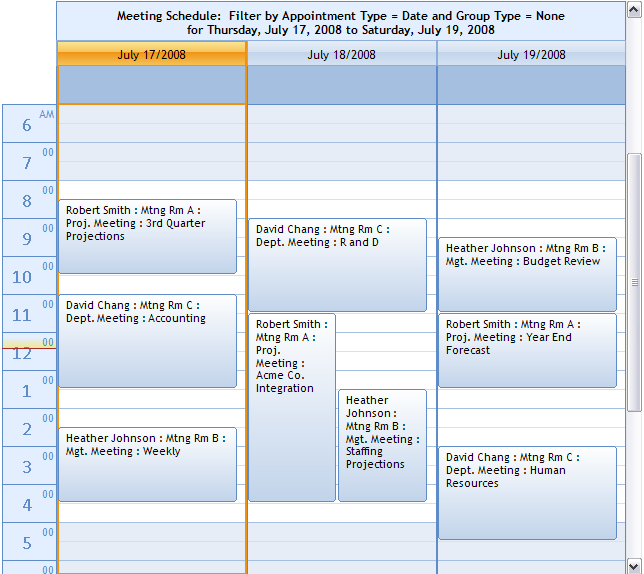
The first column reflects the current date
User Drawn Headers
The dbicDayView control allows the developer to override the built-in formatting for headers with the implementation of the UserDrawnHeader event. Each time a header is drawn in the control the UserDrawnHeader event is fired allowing the developer to selectively override the default painting routine and execute custom code to paint the header area. By default the headers are painted in two passes, the background and then the text. The developer can override either or both of these routines by setting the e.PaintBackground and/or e.PaintText to false. This notifies the control to cancel the appropriate painting routine after which the developer can then implement their own code in the UserDrawnHeader event to paint the appropriate area (background and/or text).
Among the other parameters passed on the “e” argument in the event are …
e.ContactID – the ContactID value of the contact filtering the column.
e.Date – the date filtering the column.
e.LocationID – the LocationID value of the location filtering the column.
e.TaskID – the TaskID value of the task filtering the column.
This allows the developer to selectively create a header to their own specifications based on the type and filter value of the column being drawn. Placing the following example code in the UserDrawnHeader event, the column whose ContactID was set to “SMITH1” would have a blank header with a white background …
<VB.NET Sample>
If e.ContactID = "SMITH1" Then
e.PaintBackground = False
e.PaintText = False
End If
<C# Sample>
if (e.ContactID == "SMITH1")
{
e.PaintBackground = false;
e.PaintText = false;
}
To replace the default drawing routines the developer is provided with an e.Graphics handle in the UserDrawnHeader event that can be used to paint the background and strings in the header. The graphics object passed is inherited from System.Drawing.Graphics and provides the area being painted and methods and properties to customize that area.