


Multiple Gauges
The dbicGauge control contains the ability to display multiple dbiGaugeObjects in addition to the primary gauge. Each dbiGaugeObject contains the same properties for appearance and functionality that the primary gauge does.
When creating a multiple gauge display, keep in mind that not all the dbiGaugeObjects need to be used for their main purpose. Some of the individual sections of the dbiGaugeObjects can be used together to create a more complex display.
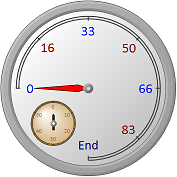
The above display is accomplished by combining 11 dbiGaugeObjects with the primary gauge of the control.
The code for achieving this display can be found inside the sample applications (C# and VB .NET source code) that ship with the product.
Alternatively to the complex background displayed in the above example, multiple dbiGaugeObjects can be combined with the primary gauge of the control to create more complex needles to fully reflect the data and presentation.
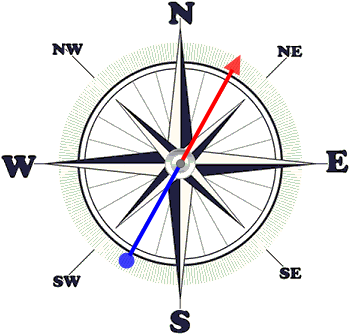
The above display uses an image for the background of the primary gauge (the compass display), while the needle is a combination of three separate needles (from 2 dbiGaugeObjects and the primary gauge). The red and blue line is a single needle, Line type with an extension. Then the second needle is the red Arrow and the third is a Marker needle for the blue circle.
Note: When combining multiple needles in a display it is up to the developer to keep them in proper synch by adjusting the Value property of their respective dbiGaugeObject or the primary gauge
The source code for the above example can be found in the sample applications (C# and VB .NET source code) that ship with the product.
Displaying/Hiding sections of a Gauge
To achieve the desired multiple gauge display, it may be neccessary to hide/display certain sections of individual dbiGaugeObjects and the primary gauge.
Needle: To hide a needle, assign a value of None to the respective NeedleType property of the object.
Path: The path section of a gauge is only displayed when the GaugeColor property is set to anything but "Color.Empty".
Pin: The pin section is only displayed when PinPosition is changed to either Front or Back.
Major Ticks: The major ticks in a gauge are only displayed when the respective MajorTicks property is > 0.
Minor Ticks: The minor ticks are only displayed between the major ones when MinorTicks >0 and MajorTicks >1.
Images: Assign a valid image to the BackImage property of the control, or the GaugeImage or PinImage properties of the primary gauge or dbiGaugeObjects
Display Order of Gauges
The individual gauges will be rendered in the display starting with the Primary Gauge, and then followed by any dbiGaugeObjects that currently reside in the control's Gauges property, in order of their index inside the collection.