


Path
The path is the section between the AngleStart and AngleEnd properties of the gauge, and represents the valid span of the movement of the needle for the gauge. The size of the display of the path, is determined by the current values assigned to the GaugeHeight and GaugeWidth properties. All properties prefixed with "Gauge" (aside from GaugeImage) will have an affect on the appearance of the path (or tick marks) in the respective Gauge.
The Path of the gauge is only visible if the GaugeColor property has been assigned a valid color. When visible, the Path will appear as a circular line that spans from AngleStart to AngleEnd around the origin point of the gauge. If both AngleStart an AngleEnd are set to the same value, the Path will form a complete circle.
Major and Minor Ticks
The control supports the display of tick marks along the path, to allow the developer to reflect a desired scale of the current gauge. The number of Major ticks is defined by the MajorTicks property, and they will be spaced out evenly along the Path of the gauge from the AngleStart to AngleEnd. The number of Minor ticks to display, is determined by the MinorTicks property. The display of Minor ticks also requires at least 2 Major ticks on the gauge.
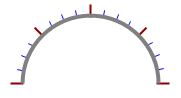
In the above image, the MajorTicks property has been assigned a value of 5 (the five red lines are major ticks) and the MinorTicks property received a value of 3 (three blue lines between each pair of major ticks).
All properties on the control and dbiGaugeObjects related to displaying the Major ticks are prefixed with "MajorTick", and all properties related to displaying the Minor ticks are prefixed "MinorTick".
Text at Major Ticks
Text can be displayed at each Major tick along the path of a gauge, if the DisplayGaugeText property is set to True (and MajorTicks is greater than 0). By default the text displayed at each major tick is the approximate value that tick represents (depending on your scale and the number of major ticks being displayed, the value the tick represents may be a double that will only be displayed as an integer).
The default appearance of all the text is determined by the GaugeFont and GaugeForeColor properties and location of the text relative to the origin point of the gauge is adjusted by the GaugeTextHeight property.
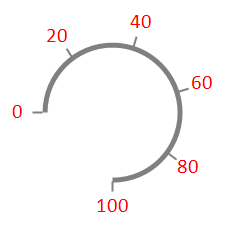
The default displayed text can be overridden, using the UserDrawnText event of the control (the event is raised whenever text is being drawn at a mejor tick in either the primary gauge or a secondary dbiGaugeObject). From that event, developers have the ability to change Text to be drawn, the color it will be drawn with, the offset of the position of the text relative to origin, and the font the text will be drawn with. The event will be fired before the text is drawn for each tick, giving the developer the option to customize the text at each tick uniquely.
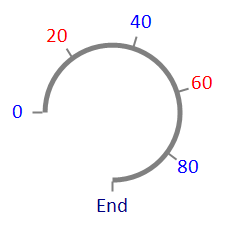
VB .NET:
Private Sub dbicGauge1_UserDrawnText(sender As Object, e As Dbi.WinControl.Gauge.UserDrawnTextEventArgs) Handles dbicGauge1.UserDrawnText
' Mark the 0, 40, and 80 major tick's text with blue.
If (e.Value = 0 Or e.Value = 40 Or e.Value = 80) Then
e.ForeColor = Color.FromArgb(0, 0, 255)
ElseIf (e.Value = 100) Then ' Change the default 100 value to the word "End".
e.ForeColor = Color.FromArgb(0, 0, 128)
e.Text = "End"
End If
End Sub
C#:
private void dbicGauge1_UserDrawnText(object sender, Dbi.WinControl.Gauge.UserDrawnTextEventArgs e)
{
// Mark the 0, 40, and 80 major tick's text with blue.
if (e.Value == 0 || e.Value == 40 || e.Value == 80)
{
e.ForeColor = Color.FromArgb(0, 0, 255);
}
else if (e.Value == 100) // Change the default 100 value to the word "End".
{
e.ForeColor = Color.FromArgb(0, 0, 128);
e.Text = "End";
}
}
There is also a working example of this functionality inside the sample applications (C# and VB .NET source code) that ship with the product.