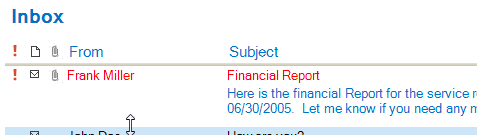
In addition to the standard column based item layout, the dbicList control’s dbiNodeItem object supports a Body property to display freeform text within an item.
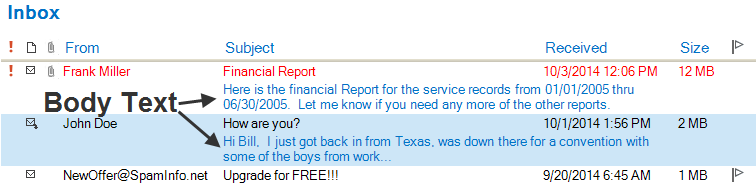
To set the body text for an item use the Body property of the dbiNodeItem object …
Example:
VB.NET
'Set the body property of the dbiNodeItem to store the notes for the contact detail
dbiNodeItem.Body = “These are the notes for the contact item detail”
C#
//Set the body property of the dbiNodeItem to store the notes for the contact detail
dbiNodeItem.Body = “These are the notes for the contact item detail”;
The BodyColumnStart and BodyColumnEnd properties determine in which columns the body text begins and ends. The positioning of the start of the body text can be further modified using the BodyIndent value to indent the text a specified number of pixels. The height of the item including the body text can be set automatically using the AutoSetNodeHeight method or manually in code using the dbicList.ItemHeightOffset property or dbiNodeItem.HeightOffset for individual items.
Example:
VB.NET
‘Automatically set the height of the item using the dbicList AutoSetNodeHeight method.
‘NOTE: The method takes the dbiNodeItem as its parameter
Me.dbicList1.AutoSetNodeHeight(dbiNodeItem)
C#
//Automatically set the height of the item using the dbicList AutoSetNodeHeight method.
//NOTE: The method takes the dbiNodeItem as its parameter
this.dbicList1.AutoSetNodeHeight(dbiNodeItem);
The height of an item can also be changed interactively with the mouse if the dbicList.LockLineHeight property or the dbiNodeItem.LockHeight property of is set to false. When the mouse is passed over an item with its LockLineHeight set to false, the cursor changes to a vertical line with an arrow on each end …
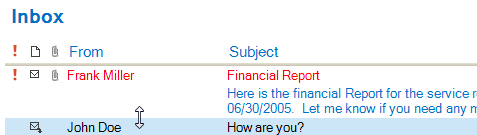
Clicking and holding down the left mouse button allows the user to increase or decrease the height of the item …