


Using Custom Images and Masking
A default dbicMeter instance appears as a horizontal or vertical rectangle that displays its value as a color bar (solid or gradient fill), or blocks of color.

In addition to the standard meter presentations, dbicMeter supports the use of custom images to represent its value. In order to present its value in terms of a custom image, the dbicMeter control requires two images; the first represents the meter as it would appear before its value is changed; the second image represents the value of the meter after its value is maximized. In the following simple example, the meter is set to represent a level of water …
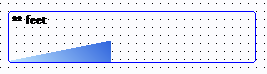
To achieve the above styling two images are required; an empty image …

and a full image … 
As the value of the control changes a composite image is rendered consisting of a percentage of the full image and a percentage of the empty image (the percentage is relative to the value of the control). NOTE: The empty and full images must be the same dimensions. The control will not resize the images to make them fit within the borders of the control and as a result the images should be the same size as the control itself.
In the example above, the non-blue area (that represents the level of the water) is colored yellow. This allows the developer to take advantage of the masking capability of the dbicMeter control. Masking allows the developer to specify a color in the image that will appear as transparent when the image is rendered. In this case the control’s MaskColor property is set to yellow to allow the yellow area in the image to appear as transparent.