|
In Cell Editing: |
|
 |
Built in edit box and combo box |
|
|
|
Support for 3rd party edit
controls |
|
|
|
Standard edit modes: <Enter>,
<Esc>, <Tab>, and <Shift Tab>
for navigation |
|
|
Modify the Edit Controls default
move and size settings |
|
|
Direct access of text and combo
boxes for: |
|
|
|
• Addition of new
navigation keys |
|
|
|
• Overriding behavior of
existing navigation keys |
|
|
• Creating edit masks |
 |
|
|
|
|
List / Tree View Area Options |
|
|
Change Line Item height by click
and drag |
|
|
Change Column widths by click
and drag |
|
|
Column Sorting built-in |
|
|
Line Item Headers independent of
columns |
|
|
Click and drag line items
within parent group* |
|
|
Line Item sub text |
|
|
Booleans – support for check
boxes in a column |
|
|
|
Set Resource List Horizontal
Scroll Bar Visible |
|
|
|
|
|
|
List / Tree View Area - User
Drawn Features: |
|
| |
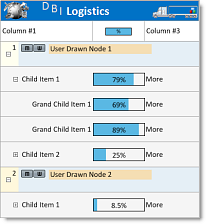
• Line Item – Override the
default painting of a line item. |
| |
• Cells – Override the default
painting of a single line item
cell |
| |
• Column Headers – Override the
default painting of a column
header |
| |
• Title - Override the default
painting of the list title |
| |
• Resource List UserDrawn
Horizontal Scroll Bar |
|
|
|
|
| |
|
  |
|
Time Line Ruler |
|
|
|
|
|
|
The Schedule Ruler offers great
flexibility for creating and
managing activities, roles,
appointments, etc. across any
combination of time type and
time value: |
|
|
|
|
|
|
User Drawn Timeline Ruler
Segments - ie.
custom week presentation |
|
|
Time types include divisions of
hours, days, weeks, months and
years. |
|
|
Time Distance values allow for
managing resources down to the
second - an important aspect
when scheduling robotics - and
to years for planning
conferences, equipment rentals
and production cycles having long
durations. |
|
|
The Time Distance property
allows developers to create
zoom-in and zoom-out
capabilities for their schedule
presentations. |
|
|
Ruler Selection – The start and
end time of a selected time bar
is highlighted in the time line
ruler, allowing for more accurate
alignment of resource time
allocations. |
|
|
|
|
|
|
|
|
|
Time Bar Features |
|
|
|
|
|
|
Time bars represent the events,
assigned roles and appointments
attributed to each resource
across the time line in a
schedule object. |
|
|
|
|
|
Time bar functionality offered
in Solutions Schedule is
extensive, offering developers
the ability to provide and
end-users the opportunity to
consume a wealth of information
in a single glance: |
|
|
|
|
|
|
Regular text and sub-text – time
bars support 2 text string
display options |
|
|
Text Into View – Make sure the
data intended for display is
always visible |
|
|
Time Bar Dates – display the
start / end days of the month
within a time bar |
|
|
Duplicate time bars quickly with
keyboard and mouse actions |
|
|
Customize time bar presentations
with: |
|
|
|
|
• Set TimeBars Visible
by Attribute |
|
|
• Milestone markers |
|
|
• Stock and custom
supplied images |
|
|
• Percentage complete
graphs in time bars |
|
|
|
Set View - per Schedule Object,
set the Schedule View |
|
|
Overlap lines – extra thick
lines drawn at the points where
time bars overlap |
|
|
Toggle Time Bars – place time
bars behind or to the front |
|
|
Alignment Lines – vertical lines
appearing at either end of a
time bar when a time bar is
being created, moved or sized
allowing for precision
alignment |
|
|
Links – Time bars can be linked
with Gantt lines. Link time bars
in any combination of Start to
Start, Start to End, End to
Start and End to End with
standard, reciprocal or direct
link. |
|
|
Link Lines, Dash Patterns and
Styles, User Drawn Link Lines |
|
|
|
|
|
General Features |
|
|
|
|
|
|
|
Set the number of Schedule
Objects for One Instance of the
Control (enterprise) |
|
|
Set individual Time Distance
Values per Schedule Object |
|
|
Independently set Schedule
Objects Visible |
|
|
UserDrawn Custom Areas |
|
|
Integrated ToolTip |
|
|
Watermark and User Drawn
Watermarks |
|
|
Custom Areas, vertical offsets |
|
|
Reporting - built in
reporting, print preview, create
image, mark items as page breaks |
|
|
Custom reporting using
Solutions Schedule .NET print
document object |
|
|
XML – write the
contents of the control to an
XML file and read it back at any
time. |
|
|
Selected time bar collection |
|
|
Map Area – A visual
representation of all active
schedule objects placed along
the top of the control for quick
navigation |
|
|
Scroll to Date - a time
targeted method for
programmatically navigating to
specific points in a schedule |
|
|
Hit test methods are
provided allowing the developer
to determine where the mouse is
at any point in the control |
|
|
|
|
Explore the full list of
features by Solutions
Schedule Product
Edition...
Compare |
|
|
|
See what's new in Solutions
Schedule .NET...
What's new |
|
|
|
|
|
|
|
|
Solutions Schedule .NET
- License Options |
|
|
|
|
|
|
Enterprise: |
Standard features + Site
Licensing, User Drawn,
Side by Side Schedules,
Drag and Drop time bars
between schedule
objects, Map Area,
Royalty-Free |
|
|
|
|
|
|
Corporate: |
Standard features +
User Drawn, Side by Side
Schedules, Drag and Drop
time bars between
schedule objects, Map
Area |
|
|
|
|
|
|
Standard: |
Primary features, Single
Developer Licensing,
Royalty-Free |
|
|
|
|
|
|
Solutions Schedule .NET
licensing -
confirm your
licensing requirements |
|
|
|
|
|
|
|
|
|