|
The dbiScheduleWPF control is capable of scheduling
Resources (time bars) in increments of minutes to months,
based on the TimeType
property of the dbiScheduleObject. The duration of time
presented by a dbiScheduleObject is defined by its Start
and End
DateTime values. The width of the schedule is determined by
the TimeType property and the TimeDistance
property relative to the start and end of the schedule.
For example: If a schedule starts on a Monday at 8:00 am and
goes until the following Friday at 8:00 pm the start of the
dbiScheduleObject
would be set to Monday's date at 8:00 am and the end
of the schedule would be set to Friday's date at 8:00 pm. If
the TimeType of the dbiScheduleObject was set to hours and
TimeDistance set to 6, each hour in the day would require 6
pixels. The total width of the Schedule would be 6 * the
number of hours between 8:00 am Monday and 8:00 pm Friday.
NOTE: The larger the value for the TimeDistance the
wider the schedule becomes as a whole.
The Ruler
The ruler defines the time line for the DbiScheduleWPF
object. The ruler is displayed in the top right hand area of
the control.
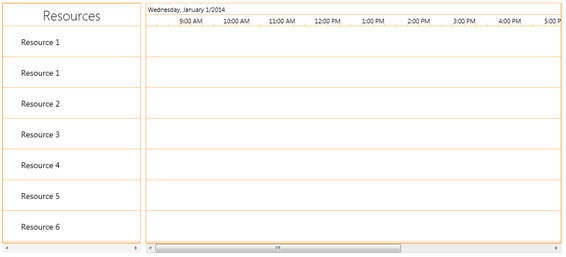
By default, the ruler is split horizontally in two. The top
half of the ruler displays the date of the time line in the
visible area at the bottom of the ruler. NOTE: As the
schedule is horizontally scrolled, the date shown in the top
of the ruler reflects the day as at the point where the time
line touches the splitter bar (the bar that separates the
list area from the schedule area). The format of the date
displayed in the top half of the ruler is defined by the DateFormat
property of the dbiScheduleObject class.
Using the RulerSplit
property of the dbiScheduleObject class, the developer can
optionally remove the top half of the ruler (RulerSplit =
False).
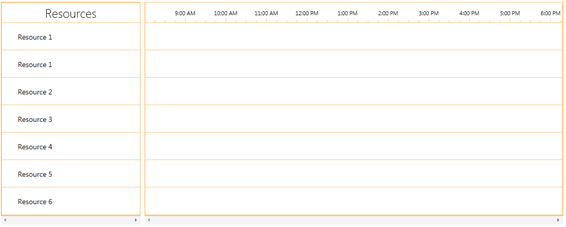
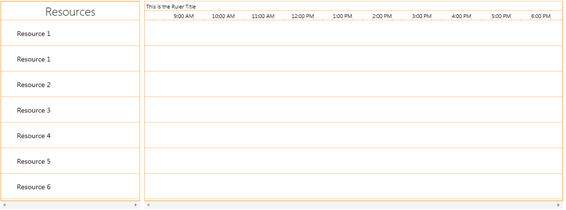
In addition to the split ruler option, the developer may
also replace the text in the top half of the ruler with a
custom text string using the RulerTitle
property of the dbiScheduleObject class.
The time values placed in the bottom half of the ruler are
determined by the TimeType property of the dbiScheduleObject
class. Valid time types are; Hours, Days, Weeks, Months, or
Years. The distance between each major time value is
determined by the TimeDistance property of the main control.
(See Setting
up Different Views
for additional details).
Customizing the Time Values
Just before each time value is drawn, the ValuePoint
event will be fired. In the ValuePoint event the “e” event
arguments passed includes a Text property that can be
used by the developer to change the default text for the
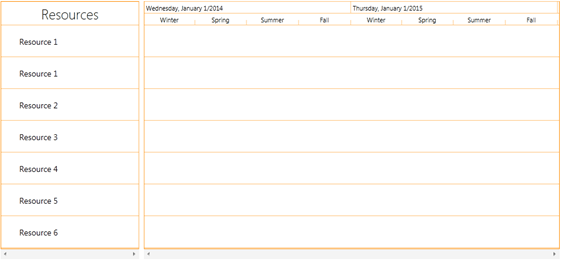
time segment being drawn. For instance, if the
dbiScheduleObject was set up with a TimeType of Years with a
Year format of Quarters, the text describing each time
segment would simply be a number between 1 and 4.
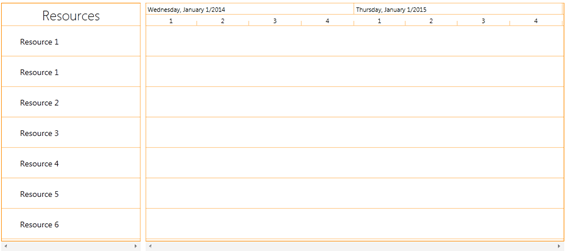
The developer could then test for this number inside the
ValuePoint event and change the text for the ruler from the
quarter number to the appropriate season.
For Example:
[VB.NET]
Private Sub
DbiScheduleWPF1_ValuePoint(sender
As
System.Object,
e
As
Dbi.WPFControl.dbiSchedule.ValuePointEventArgs)
Handles
DbiScheduleWPF1.ValuePoint
If
Me.DbiScheduleWPF1.Schedules(0).TimeType
= _ Dbi.WPFControl.dbiSchedule.enumTimeType.Years
Then
If
Me.DbiScheduleWPF1.Schedules(0).YearFormat
= _ Dbi.WPFControl.dbiSchedule.enumYearFormat.Quarters
Then
Select
Case
e.Value
Case
1
e.Text =
"Winter"
Case
2
e.Text =
"Spring"
Case
3
e.Text =
"Summer"
Case
4
e.Text =
"Fall"
End
Select
End
If
End
If
End Sub
[C#]
private
void
DbiScheduleWPF1_ValuePoint(object
sender, Dbi.WPFControl.dbiSchedule.ValuePointEventArgs
e)
{
if
(this.DbiScheduleWPF1.Schedules[0].TimeType
== Dbi.WPFControl.dbiSchedule.enumTimeType.Years)
{
if
(this.DbiScheduleWPF1.Schedules[0].YearFormat
== Dbi.WPFControl.dbiSchedule.enumYearFormat.Quarters)
{
switch
(e.Value)
{
case
1:
e.Text =
"Winter";
break;
case
2:
e.Text =
"Spring";
break;
case
3:
e.Text =
"Summer";
break;
case
4:
e.Text =
"Fall";
break;
}
}
}
}
Complete information about Solutions Schedule WPF
can be found
here:
(
https://www.dbi-tech.com/ProductPage_SolutionsScheduleWPF.aspx
)
|